Cinesound Showcase
The Showcase has premiered! This sleek, modern cinema sofa turns home entertainment into a more immersive experience, packed with state-of-the-art features – Bluetooth audio, 4D vibration, reclining seats, powered headrests, and even cup holders and wireless charging.
Show-stopping features
Bring the cinema into your living room with an array of smart features, designed to deliver a red carpet experience from the comfort of your living room.

Integrated cup holders
Positioned right in arm's reach, these integrated cup holders keep your drink of choice right where you want it.

Handy control panel
No more digging for the remote. Control volume, change tracks and more with built-in control buttons, right on your sofa.

Hidden surround sound speakers
Elevate your watching or gaming experience with hidden speakers underneath each seat and behind the storage console - delivering crystal clear surround sound.

Built-in wireless charging
A wireless device charging pad, and USB and USB-C charging ports - right on the sofa console - ensure your handheld device doesn’t run out of battery.

Vibrating 4D cinema seats
Discover the next level of 4D cinema, with seats that vibrate in time to music and sound effects - for a truly immersive experience.

Individually controlled reclining seats
Enjoy it your way - each seat can be individually adjusted, from the telescopic headrests and power recliner, to bluetooth sound and vibration.

Hidden storage
Convenient, concealed storage right in the side of the seat, so you never miss any of the good bits.

Style fit for the silver screen
Mid-century splayed legs, boxy arms, and contemporary vertical stitching – Showcase has got the style to match the tech. Plus, with four indulgent materials to choose from, you’re sure to find your thing, whether that’s the opulence of old Hollywood velvet or the contemporary luxe of leather.


2 year guarantee on all moving elements
Packed with premium, high-tech features
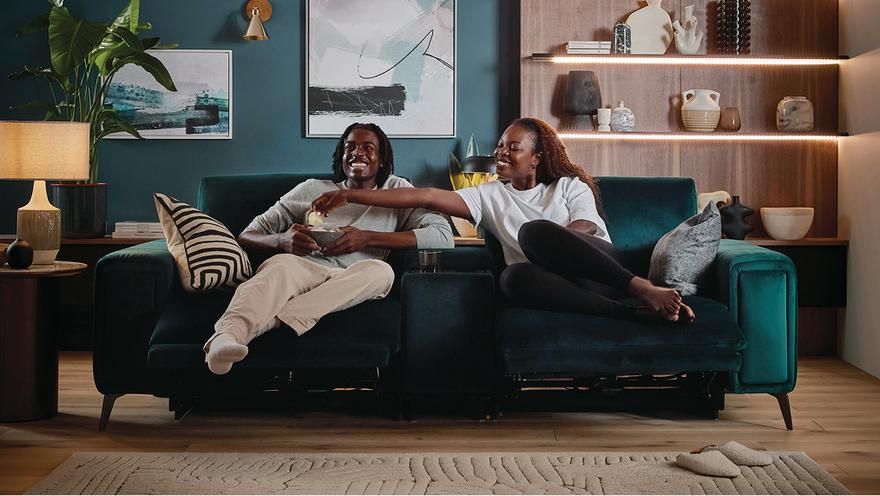
Want to get your home cinema started ASAP?
The Showcase Express can be delivered to your door in as little as 14 days – ready for lights, camera, action!
How to use your Showcase sofa
There’s an awful lot to love about the Cinesound Showcase sofa. To help you get the most out of your exciting new sofa, we’ve put together this quick user guide with tips and tricks to make you an expert in no time.
Plugging in
Plug your sofa into the mains, and ensure it’s switched on at the socket and at the switch on the back of the console (this will glow red when the power is on).
Turning on
Hold down the power button on the console for 3 seconds, until you hear “Power on” and the buttons turn blue.
Reclining seats and adjustable headrests
Controls for the reclining seats and adjustable headrests can be found on the inside of the sofa’s outer arms – push these to adjust your seating and head position.
Hidden storage area
Firmly push the front panel of your sofa’s outer arm to release the hidden storage compartment.
Connecting your device
Your sofa is ready to pair whenever it’s turned on with blue buttons. To connect your device, turn on Bluetooth mode and select “Homestage Max” from the list of devices. Hold down the Bluetooth button until you hear “Bluetooth disconnect” if you want to change the connected device.
Playing media
You can control audio from your device as normal, or by using the buttons on your sofa’s console. To pause or play audio, short press the bluetooth button; you can also increase and decrease the volume, and skip tracks forward or backward, using the relevant buttons on the console.
Vibration mode
Short press the vibration mode buttons on your console to independently control vibration on each seat of your sofa.
Cup holders
Press the cup holder button on your console to independently lower the cup holder bases. If you spill any liquids on this area or your drinks cause any condensation, we advise wiping it up straight away, as it can interfere with the wireless charging pad technology.
Charging functions
Your Showcase sofa has several charging options: USB, USB-C, and wireless. Place your device on the wireless charging pads, or plug into the USB/USB-C ports in the centre of the console.
Broadcast mode
Broadcast mode lets you connect and synchronise multiple Showcase sofas. Short press the broadcast button on your main console to turn on this mode – it will initially flash for 30 seconds, then stay steadily lit blue – then turn your other sofa(s) on and press the same broadcast button.


